Inviting members
Invite people to GenAI Security Lab and see how each invite affects your seat count.
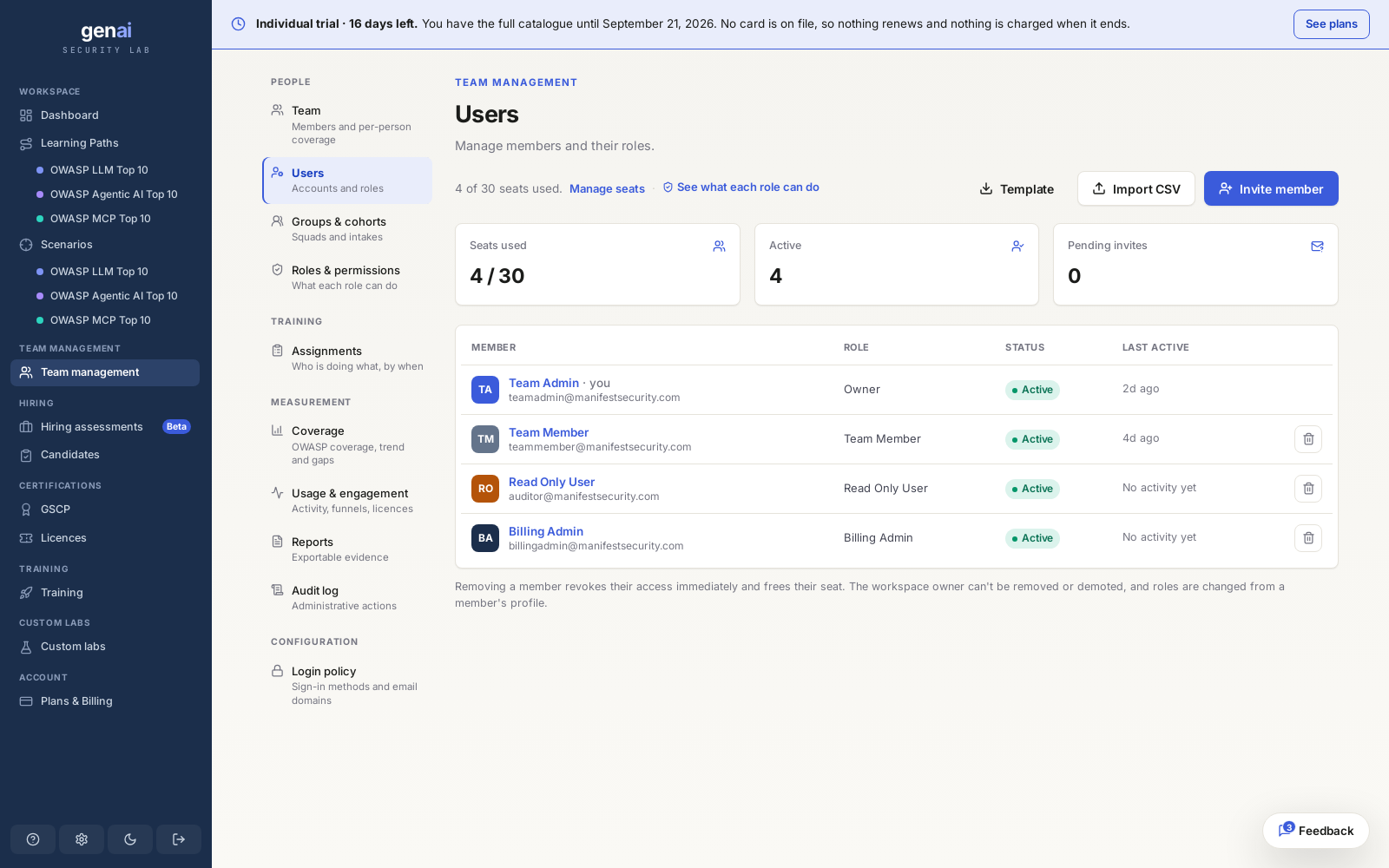
Seats first
A seat is a paid place for someone who trains. Every Team Member uses one, taken when they join and released when they leave.
Team Admins, Billing Admins and Read Only Users use no seat and aren't billed. They run the workspace and get free labs only. You can invite them when every seat is full.
A manager who also trains can receive a training seat if your organization has that option enabled. They are then billed like a Team Member and get the paid labs. Only Team Members and managers with a training seat count toward your seat limit.
Team plans have a 4-seat minimum. Check your seats used against your seat limit on the members page before inviting anyone. When all seats are used, the invite form rejects invites that need a seat. See the pricing page for current seat costs and how to add more.
Sending an invite doesn't hold a seatWe check for an available seat when you send an invite, but don't reserve it. If your team fills up before the person accepts, the invite can't be redeemed until you free up or add a seat.
Send an invite
Enter an email address and a role to send a link to join your team. The invite stays pending until the person accepts it. Anyone with an existing platform account signs in with it to accept. An account can belong to only one organization, so anyone in another organization must leave it first.
Bulk importUpload a CSV with email and role columns to invite your whole roster at once.
An invite moves through three states:
| State | Meaning |
|---|---|
| Pending | Sent, not yet accepted. Valid for 14 days. |
| Accepted | They signed up and joined as an active member. A Team Member uses a seat; a manager uses one only if they were given a training seat. |
| Expired | 14 days passed with no response. The invite can no longer be redeemed. |
Roles and permissions
Every member has one of four roles, set when you invite them and changeable later. Assign the narrowest role that lets someone do their job.
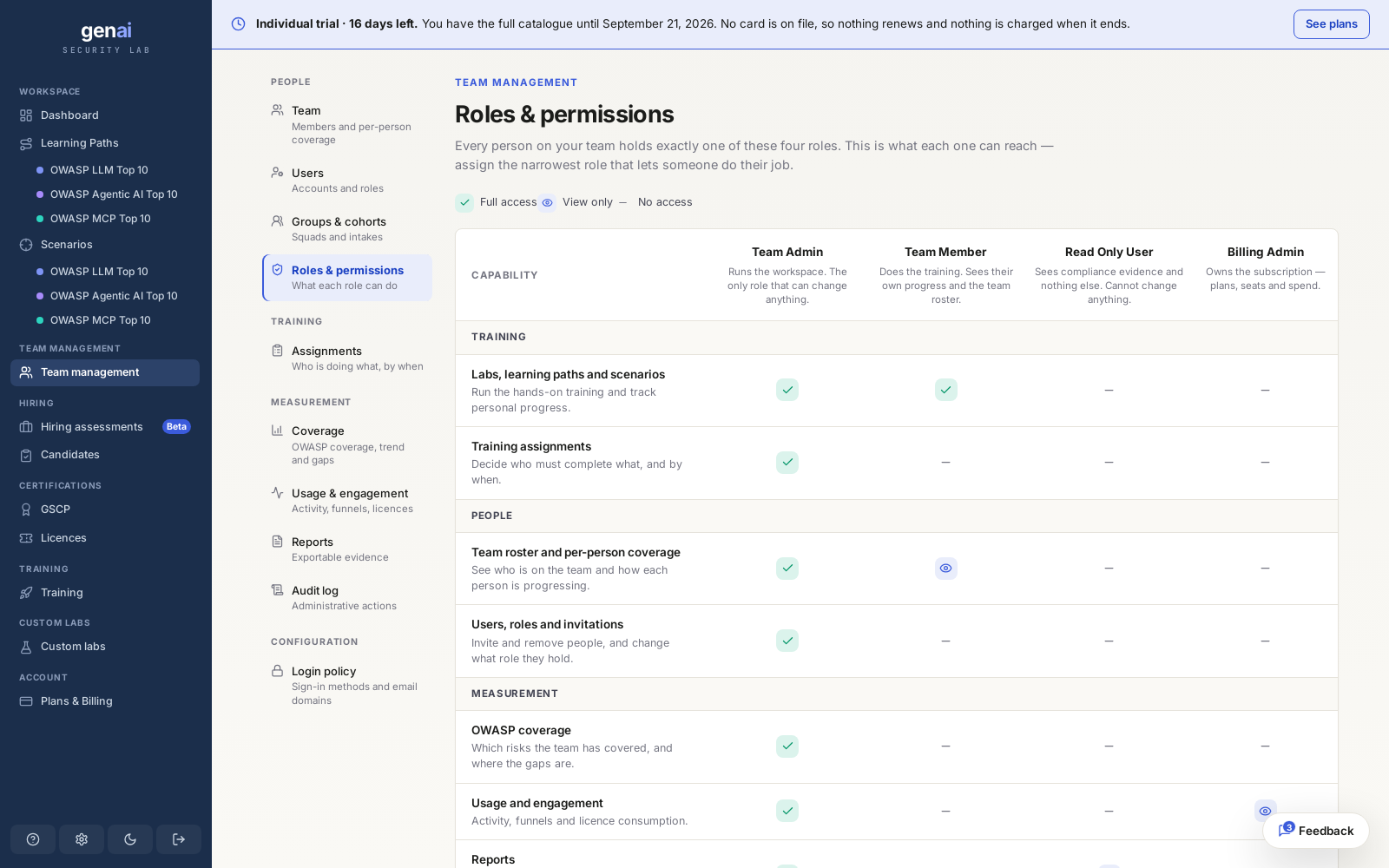
| Role | Can do | Seat |
|---|---|---|
| Team Admin | Runs the workspace. The only role that can make changes: invite and remove members, set roles, build groups and cohorts, send assignments, and manage licences and billing. The owner is always a Team Admin and can't be removed. | No seat. Free labs only. |
| Team Member | Completes labs, paths, and assignments. Sees their own progress and the team roster, with no admin controls. | Uses a seat. |
| Read Only User | Sees only compliance evidence: coverage, reports, and the audit log. Cannot make changes. | No seat. Free labs only. |
| Billing Admin | Owns the subscription, including plans, seats, and spend. No access to members. | No seat. Free labs only. |
A Team Admin, Billing Admin or Read Only User who also trains needs a training seat. If your organization has that option enabled, tick Also takes a training seat when you invite them, or turn on Uses a training seat in their row on the Users page. They keep their role, use one seat and are billed like a Team Member. Turn it off to free the seat. A Team Admin with a training seat also gets the Workspace section (Dashboard, Learning Paths, Scenarios) in their sidebar.
You can change someone's role later from their profile. Their role determines what they see in coverage and reporting and the audit log.
Resend or revoke
Revoke a pending invite to withdraw it if you entered the wrong address or no longer want it to be accepted.
There's no separate resend button. Revoke the old invite, then send a new one to the same address. You can't have two pending invites for one email at the same time.
Revoking an invite doesn't change your seat count because pending invites don't hold seats. To free a seat, remove an active member instead. This revokes their access immediately.
SSO-enforced teams
If your team restricts sign-in to specific email domains, the restriction applies when you send an invite. An address outside your allowed list is rejected before an email is sent.
Enterprise teams can require single sign-on instead of a password. Once that's provisioned, invited members authenticate through your identity provider rather than with a password. If you have turned off password sign-in on a Team plan, invited members join by signing in with Google or GitHub, using the address you invited. Set your login policy before sending invites. See login policy for details.